Reissuing Serial to Processor Card - QuickQ, MQ50, MQ70, MQ250M
Important: This method requires either the latest OS (QuickQ - 20210810, MQ70 v16) if in factory mode or the console to be running MagicQ v1.9.2.0 or QuickQ v7.0 or higher.
A USB drive is required to transfer the serial key to the console, and a computer with an internet connection is required to download the serial key.
Reissuing (USB)
This can be used in any situation (even if the console isn't in factory mode or there is an existing serial).
You can update the software using the cdq/cdz file (although the MagicQ/QuickQ application will crash if PVS is invalid, the update itself will be enough to install the new startup menu).
- Insert a USB stick into the console.
- Power up the console. The console will get stuck at the software utility as no serial is present.
- On the console keypad, or using a USB keyboard (QuickQ consoles), enter @ 8 times.
- You should see a purple menu - select Save serial request to USB
- Make a note of the .txt file saved on the stick, open it on a PC and copy the contents.
-
Open https://s2.chamsys.co.uk/manual/reissue and paste the contents.
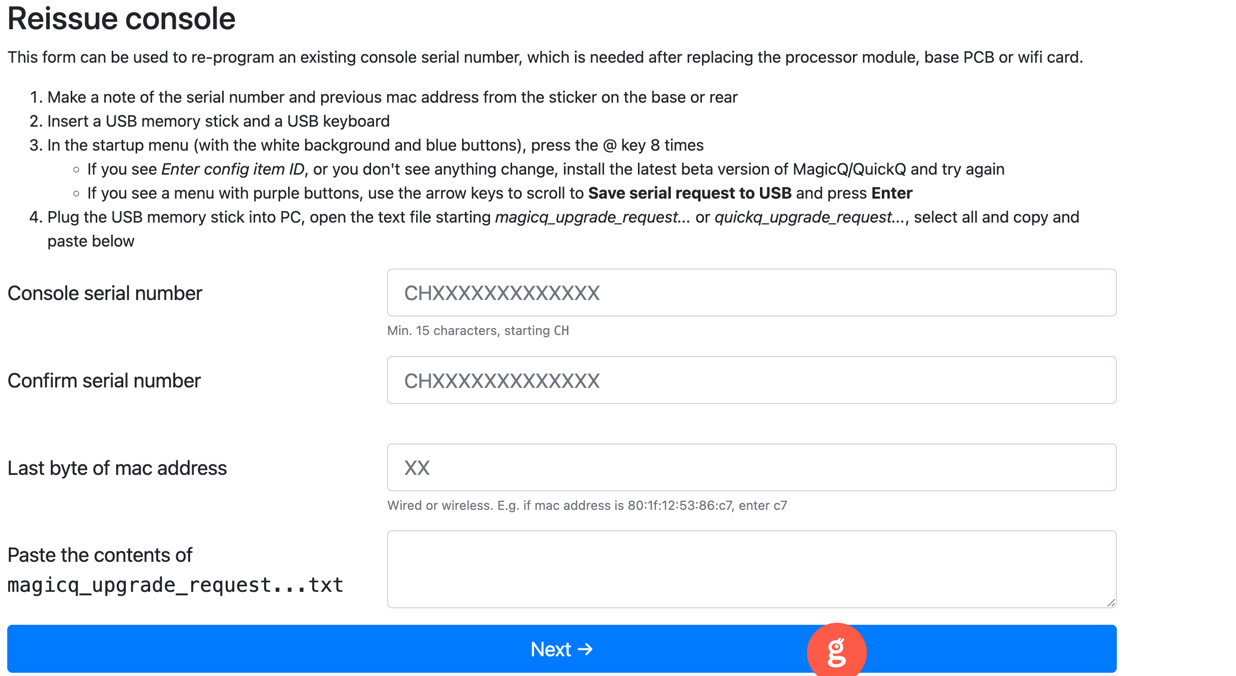
Form - Fill out the rest of the form, and click on Next.
- Download and save the new .txt file to a stick.
- Insert the stick into the console and select Install serial response from USB
- Select the downloaded .txt. file
- Serial is then installed. MagicQ/QuickQ can then be run.
- Go to setup > View system > View Status > System on MagicQ consoles to verify the serial number has been correctly programmed.